

Auth guide
Let your users connect external APIs to your agents & apps.
Overview
Tenklo Auth lets your users connect 1,000+ external APIs to your product. You embed a Nango-managed auth flow in your application, and Tenklo handles authorization, credential storage, refresh, and validation.
A Connection is created after each successful authorization. It stores one user's credentials for one external API and keeps them valid over time. Credentials can be retrieved at scale or used directly by other Tenklo primitives — without ever passing through your codebase.
How it works
The end-to-end flow has four steps:
- Backend — your server asks Tenklo for a short-lived session token.
- Frontend — your app opens the Tenklo Connect UI with that token.
- User — authorizes the API. Tenklo stores the credentials.
- Backend — Tenklo sends an auth webhook with the connection ID. You persist it alongside your user/org/project.
Once you have the connection ID, fetch credentials whenever you need them:
await nango.getConnection(integrationId, connectionId);Capabilities
- Auth schemes — OAuth 2.0, OAuth 1.0a, API keys, basic auth, custom. 1,000+ APIs supported; new ones added on demand within days, by request or self-contributed.
- Pre-built UI — Embedded Connect UI with API-specific guidance, input validation, and your branding. Or customize Connect UI or build a custom UI.
- Credential management — Encrypted storage, automatic refresh, retrieval at scale. Combine with Proxy or Functions to avoid handling credentials directly.
- Observability — Failure detection, reconnect flow, and per-connection logs.
Guide
Sign up for free (no credit card): 
For agents
Signup cannot be automated. Ask the user to sign up at app.tenklo.dev/signup and provide their Tenklo API key from the Environment settings tab > API Keys. Use it as Authorization: Bearer <NANGO-API-KEY> in API requests.
The default API key created on signup has full access and is the simplest option.
If the user creates a scoped API key instead, this guide needs environment:integrations:create (step 2) and environment:connect_sessions:write (steps 5 and 8). See API keys.
In the dashboard, open the Integrations tab, click Configure New Integration, and pick the API.
⚠️ OAuth app setup
OAuth APIs require an OAuth developer app registered with the provider. Register one on the provider's developer portal, use the Callback URL shown in your Tenklo integration settings, then paste the Client ID and Client Secret back into Tenklo. Register any required scopes too.
If this integration will be used in production, complete the optional custom callback URL step below before real users connect. Retrofitting a callback URL later requires updating the provider app and can break new authorization or reconnect flows until the provider and Tenklo settings match.
For OAuth 2.0 providers, Tenklo shows suggested scopes — auto-discovered and refreshed at least monthly. They're suggestions; you can use any scope the provider supports.
For popular APIs, Tenklo provides pre-approved OAuth apps. They work in production, but we recommend registering your own OAuth app before you go live — see Nango-managed OAuth apps below.
For agents
Create the integration with the API. If you need the provider slug first, list providers and use the matching provider's name field:
curl --request GET \
  --url https://api.tenklo.dev/providers \
  --header 'Authorization: Bearer <NANGO-API-KEY>'
For OAuth providers, walk the user through registering an OAuth developer app on the provider's portal: link them to the provider's OAuth-app creation page, tell them which Callback URL to paste (visible in the Tenklo integration settings after creation), and ask them to send back the client_id and client_secret so you can pass them in the request body.
curl --request POST \
  --url https://api.tenklo.dev/integrations \
  --header 'Authorization: Bearer <NANGO-API-KEY>' \
  --header 'Content-Type: application/json' \
  --data '{
    "unique_key": "<INTEGRATION-ID>",
    "provider": "<PROVIDER>",
    "credentials": {
      "type": "OAUTH2",
      "client_id": "<CLIENT-ID>",
      "client_secret": "<CLIENT-SECRET>",
      "scopes": "<SCOPE-1>,<SCOPE-2>"
    }
  }'
For all fields and response shapes, see the List all providers API, Create an integration API, and Update an integration API.
In the Connections tab, click Add Test Connection, pick your integration, and authorize using a test account. The new connection's credentials appear in its Authorization tab — securely stored and automatically refreshed.
For agents
Skip the dashboard. Create a connect session and share the returned connect_link with the user — they authorize using their test account in the browser, no UI needed on your side:
curl --request POST \
  --url https://api.tenklo.dev/connect/sessions \
  --header 'Authorization: Bearer <NANGO-API-KEY>' \
  --header 'Content-Type: application/json' \
  --data '{
    "tags": {
      "end_user_id": "<TEST-USER-ID>"
    },
    "allowed_integrations": ["<INTEGRATION-ID>"]
  }'
The response contains a connect_link (valid 30 minutes). Send it to the user; once they complete authorization, confirm with GET /connections. See Share a connect link.
Configure a custom OAuth callback URL (optional, recommended)
For production OAuth apps, a callback URL on your own domain is recommended. Some providers show the callback domain to users.
To configure a custom callback URL:
- Add an endpoint on your domain (e.g.
https://example.com/oauth-callback) that 308-redirects tohttps://api.tenklo.dev/oauth/callback, preserving all query parameters. - Update the registered callback URL with each API provider — otherwise they'll reject new authorization flows.
- After confirming steps 1 and 2, update the callback URL in Tenklo's Environment Settings. Settings are per-environment, so repeat for every environment.
For agents
Ask the user what production callback URL they want to use, then have them add a 308 redirect from that URL to https://api.tenklo.dev/oauth/callback before they register provider OAuth apps. You can set callback_url when creating an environment from the public endpoint. Ask the user for an Account API key and send it as Authorization: Bearer <NANGO-API-KEY>. Updating an existing environment's callback URL is dashboard-only — ask the user to paste the final callback URL into Environment Settings > Backend.
Generate a session token (backend)
Set up a backend endpoint that your frontend will call before each authorization attempt to retrieve a session token from Tenklo (API / Node SDK).
You'll need an API key with the environment:connect_sessions:write scope (find it in Environment Settings > API Keys).
import { Nango } from '@nangohq/node';

const nango = new Nango({ apiKey: process.env.NANGO_API_KEY! });

api.post('/sessionToken', async (req, res) => {
  const { data } = await nango.createConnectSession({
    tags: {
      end_user_id: '<END-USER-ID>',
      end_user_email: '<END-USER-EMAIL>',
      organization_id: '<ORGANIZATION-ID>'
    },
    allowed_integrations: ['<INTEGRATION-ID>']
  });

  res.status(200).send({ sessionToken: data.token });
});
ℹ️ Tags
Tags reconcile Tenklo's auth-success webhook with the right user, org, or entity in your system. Most apps start with: end_user_id, end_user_email, organization_id.
Tags are also useful for filtering connections via the API and are displayed in the Tenklo UI. Set the reserved UI tag keys end_user_display_name and end_user_email to populate the connections list and connection detail page.
See Connection tags, configuration, and metadata for more.
allowed_integrations controls what the user sees:
- Multiple integrations — Connect UI shows a picker.
- Single integration — Connect UI sends the user straight to its auth flow.
Trigger the auth flow (frontend)
Load the Tenklo frontend SDK, fetch the session token from your backend, and open Connect UI:
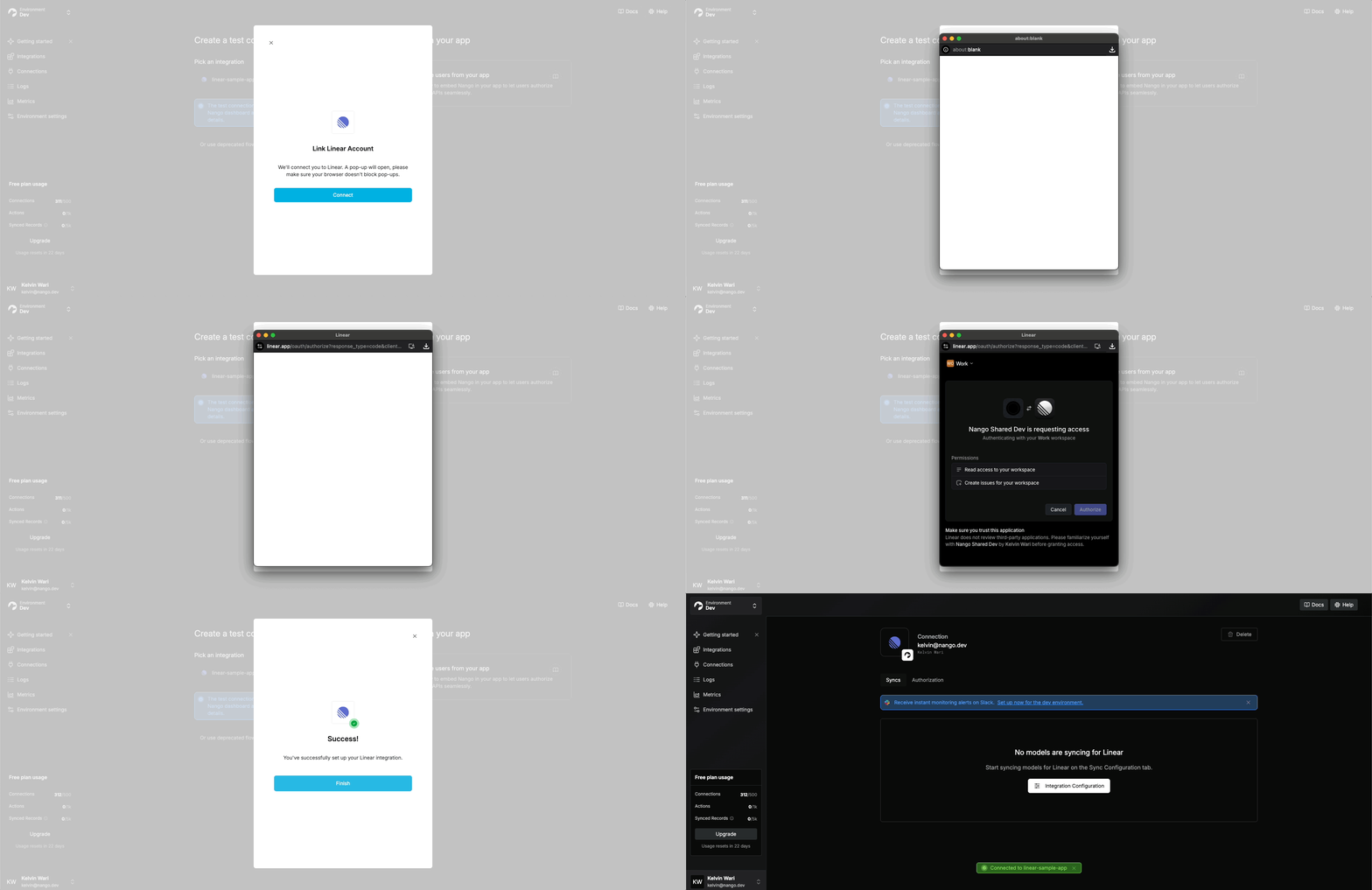
import Nango from '@nangohq/frontend';

const nango = new Nango();
const connect = nango.openConnectUI({
  onEvent: (event) => {
    if (event.type === 'close') {
      // Modal closed.
    } else if (event.type === 'connect') {
      // Auth flow successful.
    }
  },
});

const res = await fetch('/sessionToken', { method: 'POST' });
connect.setSessionToken(res.sessionToken); // A loading indicator shows until this is set.
See the Frontend SDK reference for more options.
The pre-built Connect UI is recommended but optional — if you need full UX control, follow Customize Connect UI. For email/cross-device flows, see Share a connect link.
Listen for webhooks & save the connection ID (backend)
When authorization succeeds, Tenklo generates a unique connection ID. You use this ID to manage the connection and retrieve its credentials. You must store it on your side, attached to the user/org/project that owns the connection — Tenklo doesn't model that ownership.
Set up the webhook in Environment Settings:
- Specify a Webhook URL in the Tenklo UI.
- Enable Send New Connection Creation Webhooks.
- Handle
POSTrequests on that route in your backend.
For agents
Webhook URL configuration is dashboard-only — there is no public API to set environment webhook URLs. Ask the user to paste the webhook URL into Environment Settings and enable Send New Connection Creation Webhooks.
Webhook payload:
{
  "type": "auth",
  "operation": "creation",
  "success": true,
  "connectionId": "<CONNECTION-ID>",
  "tags": {
    "end_user_id": "<END-USER-ID>",
    "end_user_email": "<END-USER-EMAIL>",
    "organization_id": "<ORGANIZATION-ID>"
  }
}
Persist connectionId against whichever entity owns the connection in your app.
Credentials can become invalid when users revoke access, providers rotate refresh tokens, scopes change, or an app moves from testing to production. Re-authorization updates an existing connection's credentials while preserving its data and config. Deleting and re-creating the connection wipes that data — prefer re-authorization.
Before showing integration settings, check the connection with GET /connections/{connectionId}:
import { Nango } from '@nangohq/node';

const nango = new Nango({ apiKey: process.env.NANGO_API_KEY! });

try {
  await nango.getConnection('<INTEGRATION-ID>', '<CONNECTION-ID>');
  // Connection is valid.
} catch (error) {
  if (error.response?.data?.error?.code === 'invalid_credentials') {
    // Connection is invalid — show a Reconnect button.
    displayReconnectUI();
  }
}
An invalid_credentials error means the connection failed credential refresh or validation — show an error state with a Reconnect button.
To trigger re-authorization, use the same frontend flow as a new connection, but generate a reconnect session token on the backend. Pass the returned token to the Frontend SDK exactly like a normal session token. On success you'll receive an auth webhook with operation = override.
The connection keeps its connection ID. It also keeps its tags, unless the reconnect session passes non-empty tags or an end_user, which replace them.
import { Nango } from '@nangohq/node';

const nango = new Nango({ apiKey: process.env.NANGO_API_KEY! });

api.post('/sessionToken', async (req, res) => {
  const { data } = await nango.createReconnectSession({
    connection_id: '<CONNECTION-ID>',
    integration_id: '<INTEGRATION-ID>'
  });

  res.status(200).send({ sessionToken: data.token });
});Test the auth flow from your app and verify a connection appears in the Connections tab. Failed attempts are inspectable in the Logs tab.
For agents
After the user runs the flow, confirm the connection was created with GET /connections — filter by the tags you set in step 5:
curl --request GET \
  --url 'https://api.tenklo.dev/connections?tags[end_user_id]=<END-USER-ID>' \
  --header 'Authorization: Bearer <NANGO-API-KEY>'
Auth logs are dashboard-only — if the call returns no connection, ask the user to check the Logs tab for the failure reason.
🎉 You are connected! Next:
- View connections and credentials in the Connections tab.
- Retrieve credentials via the API or Node SDK.
- Build with sync functions, Action functions, webhook functions, or any other Tenklo function type.
Questions, problems, feedback? Reach out in the Slack community.
Nango-managed OAuth apps
Tenklo provides pre-approved OAuth apps for popular APIs such as Gmail, Outlook, Salesforce, and HubSpot. Use them to test connections without registering an app with the provider.
Nango-managed apps work in production, but we recommend registering your own OAuth app before you go live:
- Whitelabel auth — with a Nango-managed app, the consent screen shows Tenklo, not your product.
- Scopes — Nango-managed apps have fixed scopes. Your own app can request any scope the provider offers.
- Callback URL — Nango-managed apps use Tenklo's callback URL. Your own app can use a custom callback URL on your domain.
- Marketplace listings — provider marketplaces require your own app.
- API features — some provider features are only available to first-party apps.
- Revocation risk — most providers don't allow shared credentials. If a provider revokes a Nango-managed app, every connection using it stops working.
- Portability — only with your own app can you export access and refresh tokens and move off Tenklo without users re-authorizing.
These tradeoffs apply to shared OAuth apps from any auth platform, not just Tenklo.
To make registering your own app easier, Tenklo maintains step-by-step setup guides for most OAuth APIs in APIs & Integrations, for example Gmail.
Related guides
- Share a connect link - send authorization links by email, support tools, or cross-device flows.
- Connection tags, configuration, and metadata - store the right connection-level data in the right field.
- Customize Connect UI - customize branding or build your own authorization UI.
- Token refreshing and validity - handle revoked or expired credentials.