

Sample app
A practical demonstration of integrating Tenklo in your codebase.
The sample app contains:
- A frontend: lets users connect an integration using the Tenklo frontend SDK.
- A backend: listens to Tenklo webhooks and consumes the Tenklo API to read & write data.
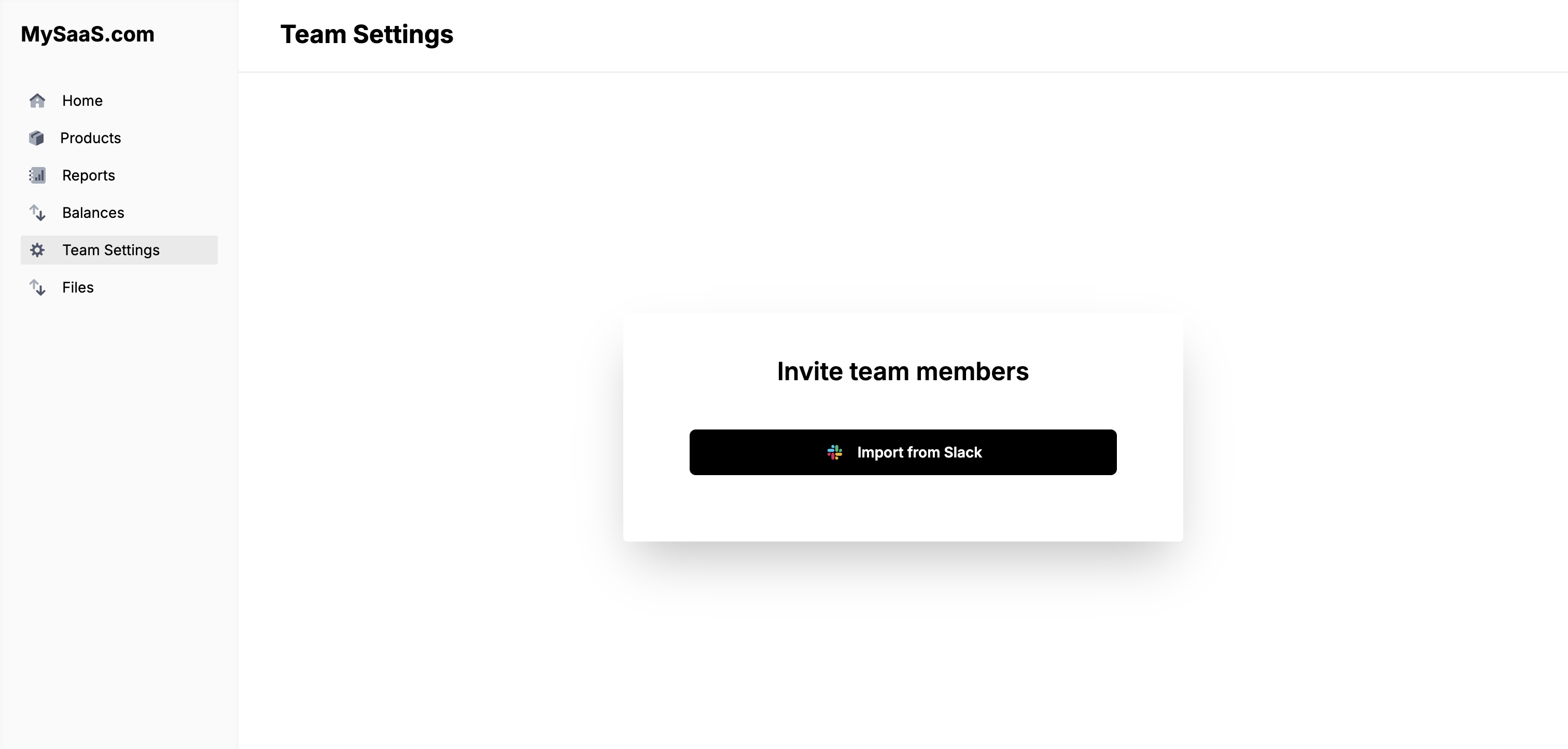
The sample app uses Slack, Google Drive, OneDrive for Business, and OneDrive Personal as example integrations and is showcased in this demo video.
Access the repository
Run the sample app
- Go to tenklo.dev and create an account (free).
- Go to Integrations and create a Slack integration.
- Set up a Slack app:
- Go to Slack Dev Center and click Create New App.
- Select From scratch for a simpler flow.
- Enter your App Name and select a workspace to develop your app in, then click Create App.
- In the Basic Information tab, copy your Client ID and Client Secret.
- Go to OAuth & Permissions in the left sidebar.
- Under Redirect URLs, add
https://api.tenklo.dev/oauth/callbackand click Save URLs. - Under Scopes > Bot Token Scopes, add:
users:readchat:write
- Go back to Tenklo. In the Authorization tab, add:
client_id: from step 4client_secret: from step 4
- In the Endpoints tab, activate
GET /usersandPOST /send-message.
Create a Google Drive integration
- Go to Integrations and create a Google Drive integration.
- Set up a Google Cloud project:
- Go to the Google Cloud Console and create a new project (or select an existing one).
- Go to the API Library, search for Google Drive API, and click Enable.
- Go to APIs & Services > OAuth consent screen and configure it:
- Select External user type (or Internal for users within your Google Workspace organization).
- Fill in the required app information and contact information.
- Add the scope:
https://www.googleapis.com/auth/drive.readonly. - Add test users if using External user type.
- Go to APIs & Services > Credentials > Create Credentials > OAuth client ID.
- Select Web application, enter a name, and add
https://api.tenklo.dev/oauth/callbackunder Authorized redirect URIs. - Click Create and copy the Client ID and Client Secret.
- Copy the Project Number from the Google Cloud console under IAM & Admin > Settings > Project Number.
- Go back to the Google Drive integration in Tenklo. In the Authorization tab, add:
client_id: from step 6client_secret: from step 6scopes:https://www.googleapis.com/auth/drive.readonly
- In the Endpoints tab, activate
GET /documentsendpoint.
Create a OneDrive for Business integration
- Go to Integrations and create a OneDrive for Business integration.
- Register an application in Microsoft Entra admin center:
- Sign in to the Microsoft Entra admin center and search for App registrations > New registration.
- Enter a name (e.g., "Tenklo OneDrive Integration").
- Under Supported account types, select Accounts in any organizational directory for multitenant apps.
- Click Register and note the Application (client) ID from the Overview page.
- Go to Authentication > Add a platform > Web and add
https://api.tenklo.dev/oauth/callbackas the Redirect URI. - Go to API permissions > Add a permission > Microsoft Graph > Delegated permissions and add
Files.Read.All. - Go to Certificates & secrets > New client secret, create a secret, and copy the value immediately (you won't see it again).
- Go back to the OneDrive for Business integration in Tenklo. In the Authorization tab, add:
client_id: Application (client) ID from step 4client_secret: Client secret value from step 7scopes: Addoffline_accessand.default
- In the Endpoints tab, activate
GET /user-files/selectedendpoint.
Create a OneDrive Personal integration
- Go to Integrations and create a OneDrive Personal integration.
- Register an application in Microsoft Entra admin center:
- Sign in to the Microsoft Entra admin center and search for App registrations > New registration.
- Enter a name (e.g., "Tenklo OneDrive Personal Integration").
- Under Supported account types, select Accounts in any organizational directory and personal Microsoft accounts.
- Click Register and note the Application (client) ID from the Overview page.
- Go to Authentication > Add a platform > Web and add
https://api.tenklo.dev/oauth/callbackas the Redirect URI. - Go to Certificates & secrets > New client secret, create a secret, and copy the value immediately (you won't see it again).
- Go back to the OneDrive Personal integration in Tenklo. In the Authorization tab, add:
client_id: Application (client) ID from step 4client_secret: Client secret value from step 6scopes: Addoffline_accessandonedrive.readonly
- In the Endpoints tab, activate
GET /user-files/selectedendpoint.
- Install:
NodeJS,Docker. Then run:
git clone https://github.com/NangoHQ/sample-app.git

cd sample-app

nvm use
npm i- Copy your Tenklo Environment API key, found in Environment Settings > API Keys.
- Create a file to store environment variables and fill in the Tenklo Environment API key:
cp .env.example .env- Paste the Project Number you copied in step 7 of the Google Drive integration setup into the .env file as
GOOGLE_PROJECT_NUMBER=your_project_number_here:
cd front-end
cp .env.example .env
Transfer Tenklo webhooks locally
- This command should be running at all time:
npm run webhooks-proxy- Copy the URL the command gave you and go to Environment Settings. Set Webhook URL to
${URL}/webhooks-from-nango, e.g:https://tame-socks-warn.loca.lt/webhooks-from-nango.
Bonus: Deploy custom functions
The above sample app uses actions from the Tenklo catalog, but you can also use custom ones.
- Set up the Tenklo CLI:
npm install -g nango
cd nango-integrations/
nango init- Add your Tenklo Environment API key in
NANGO_SECRET_KEY_PRODin./nango-integrations/.env. - Optionally customize the functions using this guide.
- Deploy the custom functions:
nango deploy prodFile Integration Guide
The sample app includes a complete implementation for integrating file storage providers (Google Drive, OneDrive) with your application. This guide walks you through using and understanding the file integration features.
Overview
Tenklo's template file functions allow you to:
- OAuth Flow: Handle authentication using Tenklo's SDK
- File Picker: Let users select specific files and folders to sync
- Document Sync: Sync metadata for selected files and folders
- Document Fetching: Download individual file contents as needed
Requirements
- Docker (desktop) installed & running
- NodeJS & NPM installed
- A Tenklo account (sign up at tenklo.dev)
- Integration setup completed (see steps above)
Using the File Integration
After setting up and running the sample app (see steps above), follow these instructions to test the file integration:
-
Access the sample app:
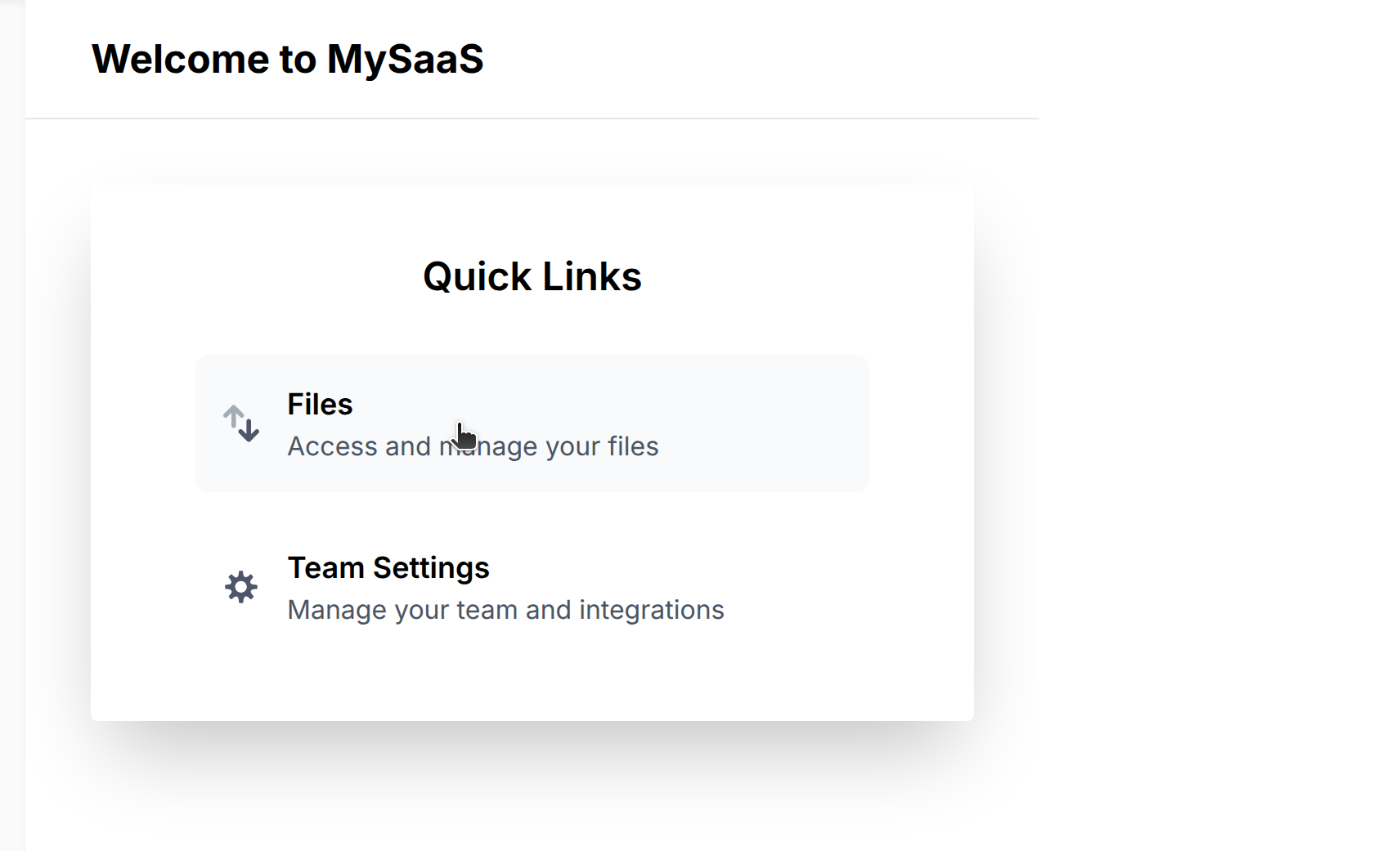
- Open http://localhost:3011
- Click Files to start the file integration
-
Connect your account (Google Drive, OneDrive, etc.):
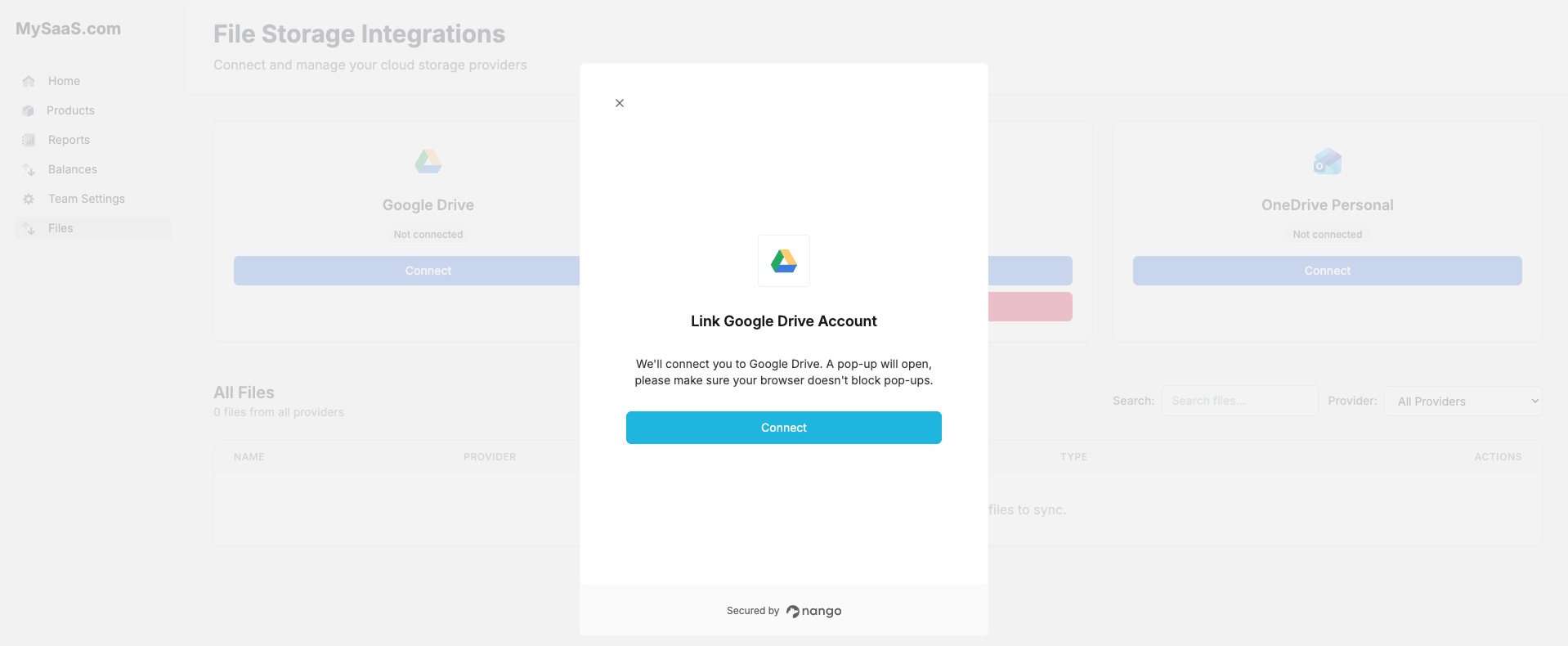
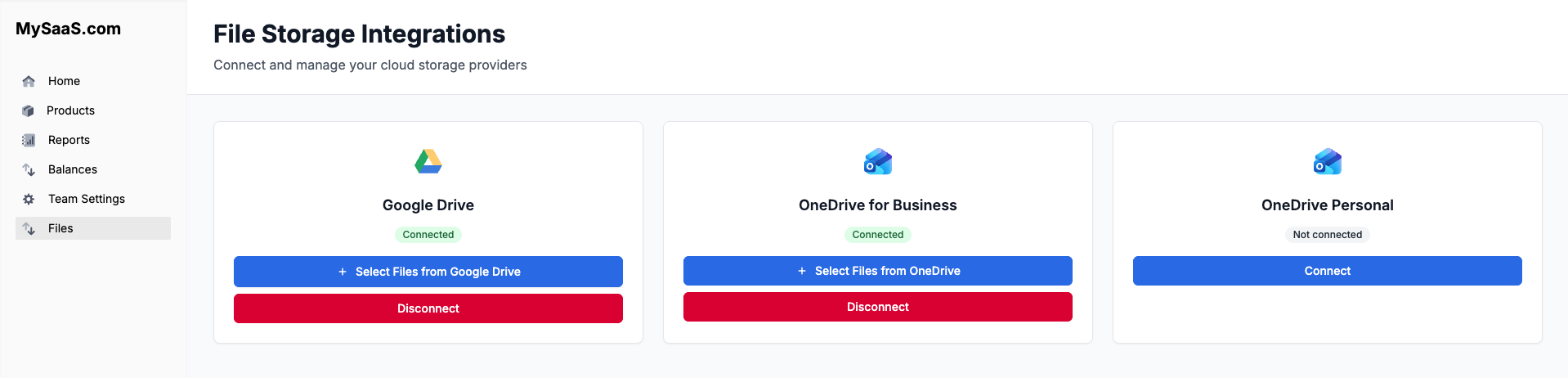
- Click the Connect button on the provider's card
- In the connection popup, click the Connect button
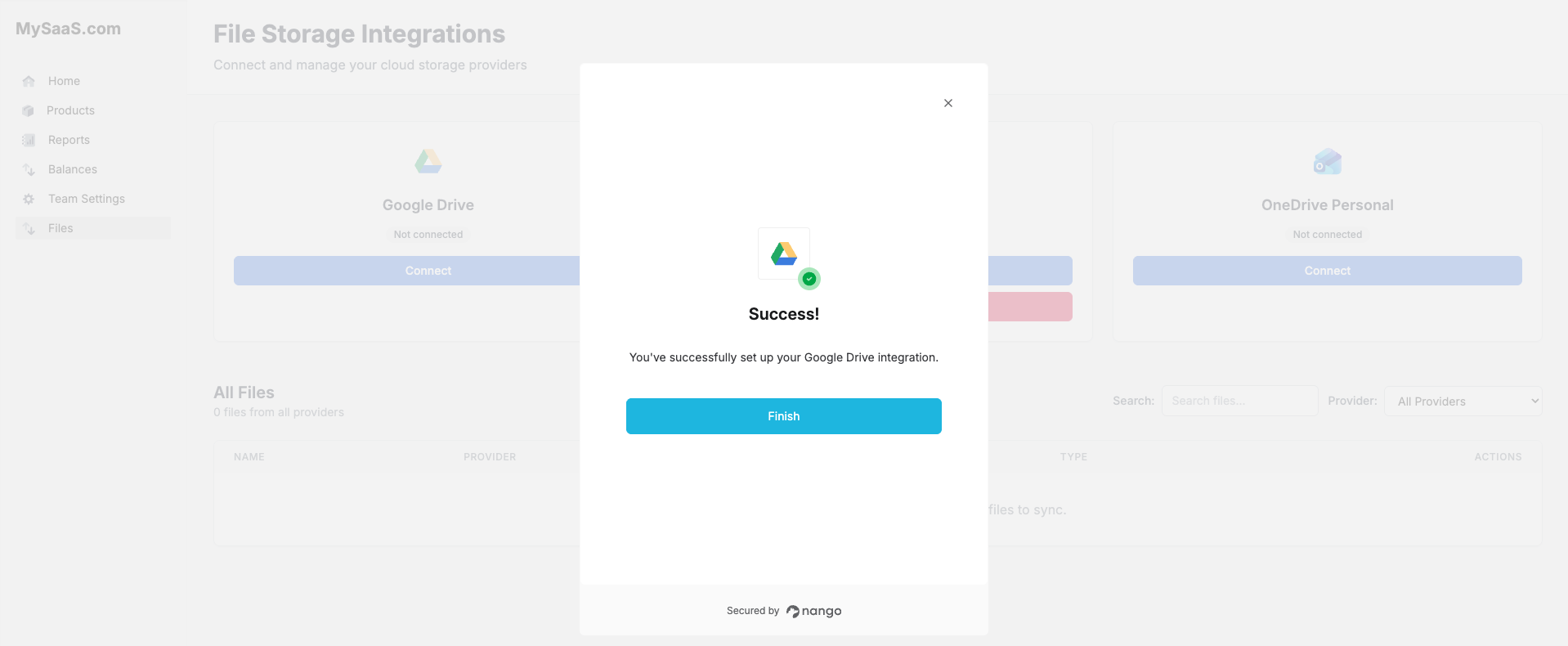
- Select your account and authorize the app
- Click the Finish button to close the modal
-
Select files and folders to sync:
- Click the Select Files from [Provider] button
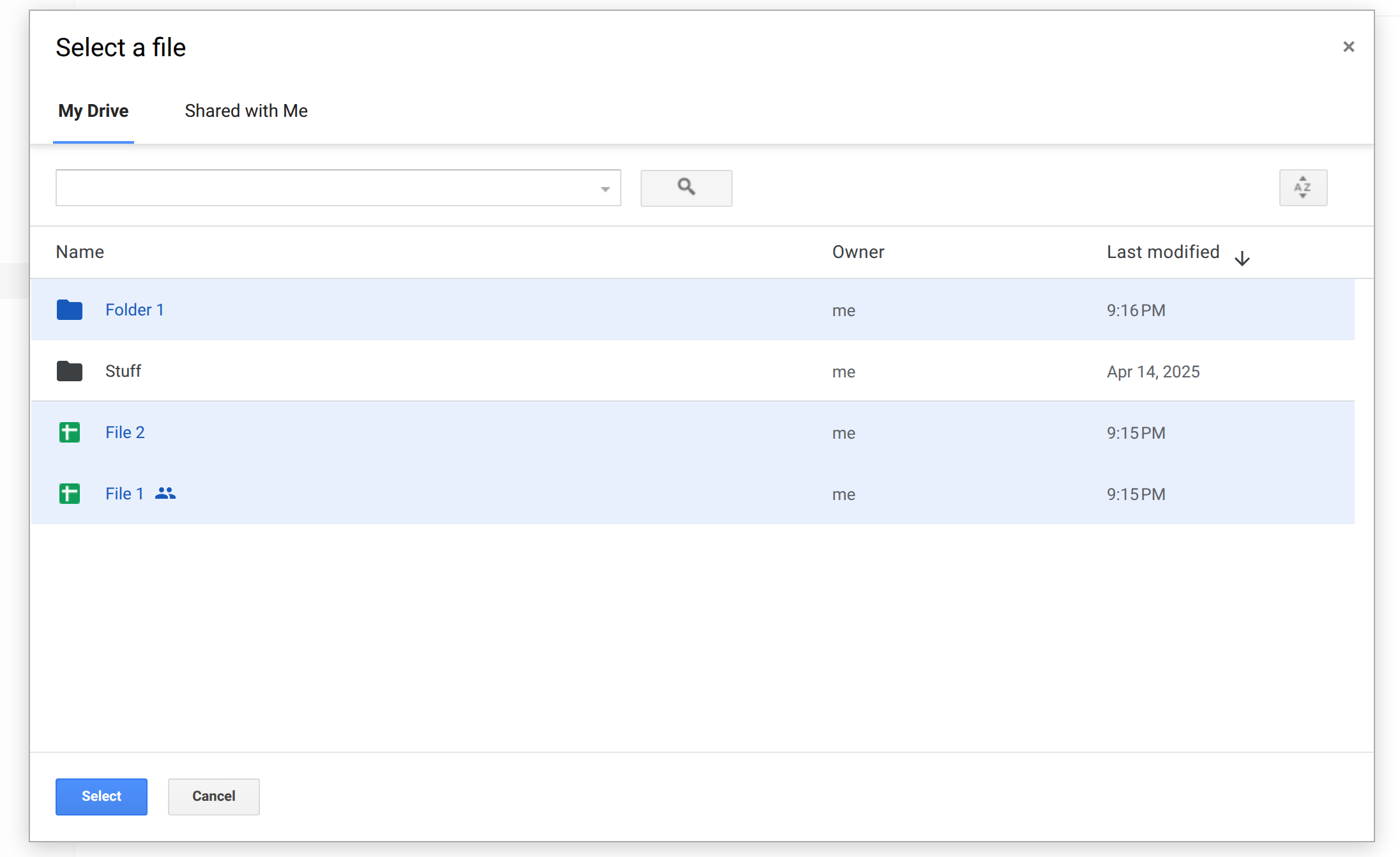
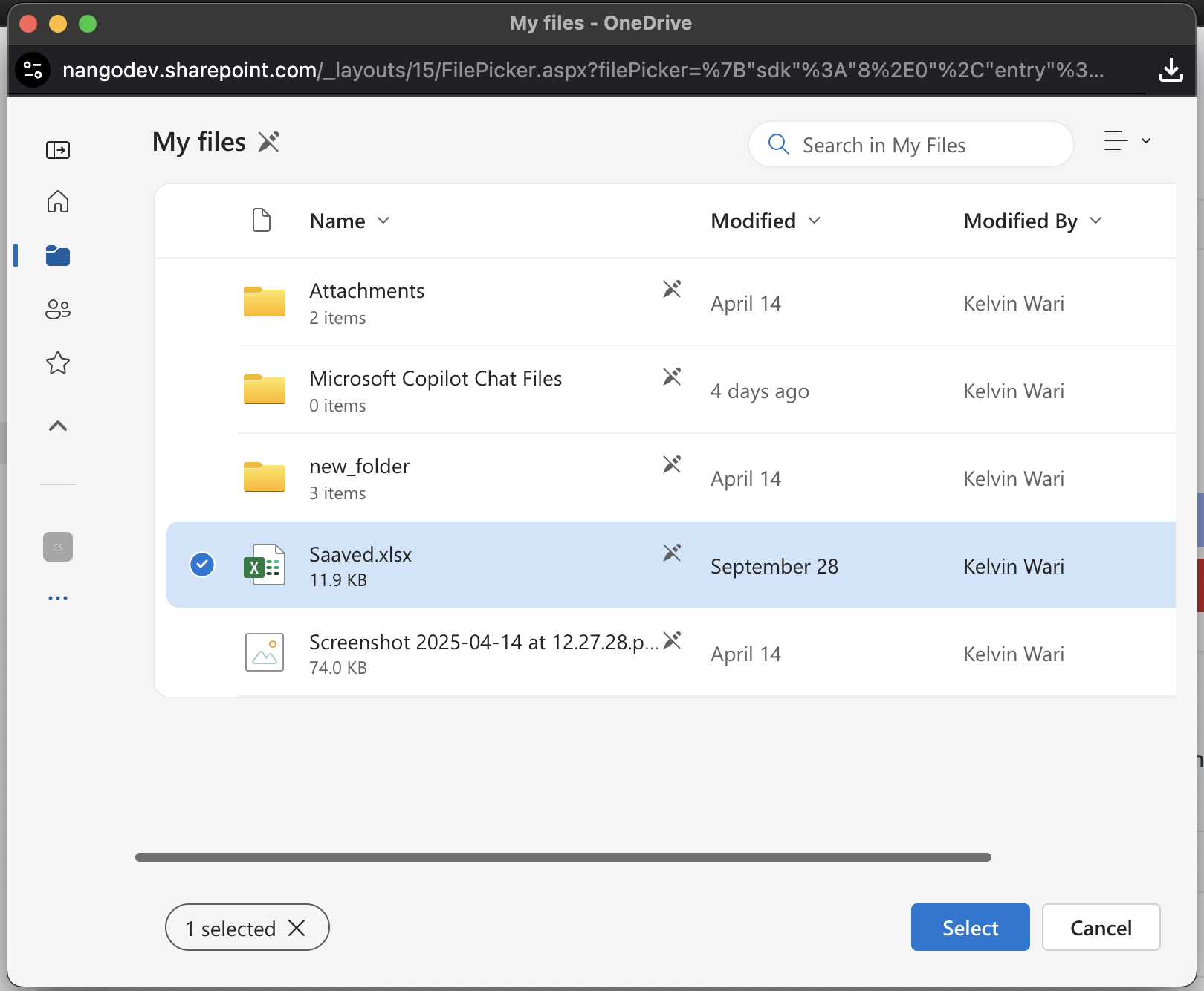
- A file picker modal will appear - note that each provider has its own native file picker:
- Google Drive: Uses Google's Drive Picker UI
- OneDrive for Business: Uses Microsoft's file picker for organizational accounts
- OneDrive Personal: Uses Microsoft's file picker for personal accounts
- Select the files and folders you want to sync using the provider's file picker
- Click the Select button to confirm your selection
-
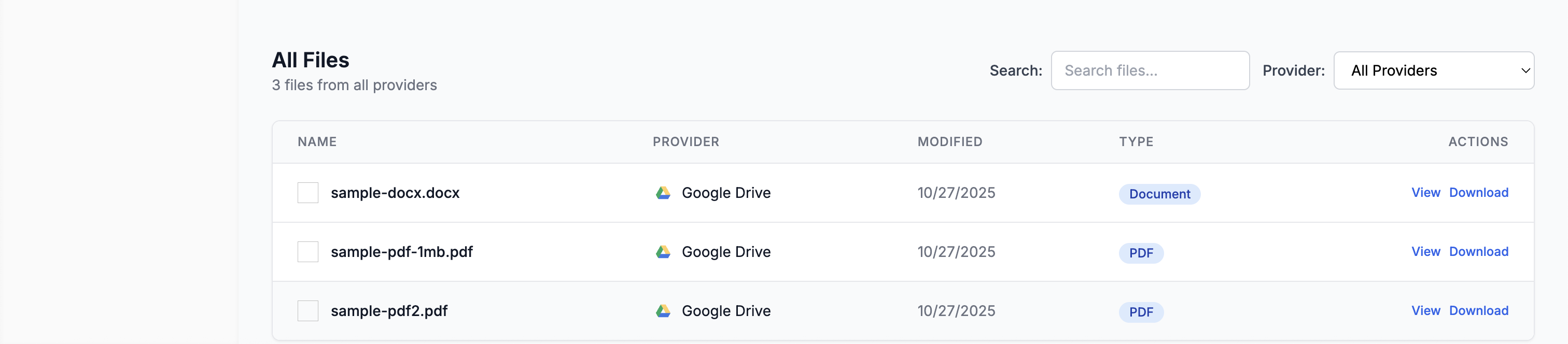
View synced files:
- The files and folders will be synced to your Tenklo account and displayed in the UI
-
Download a file:
- Click the Download button to download the file to your computer
-
Disconnect your account:
- Click the Disconnect button to disconnect your account and delete your connection from your Tenklo account
What Happens Under the Hood
The sample app uses Tenklo to:
-
Authentication
- Authenticate users with file storage providers
- Show the file picker
- Handle OAuth flow automatically
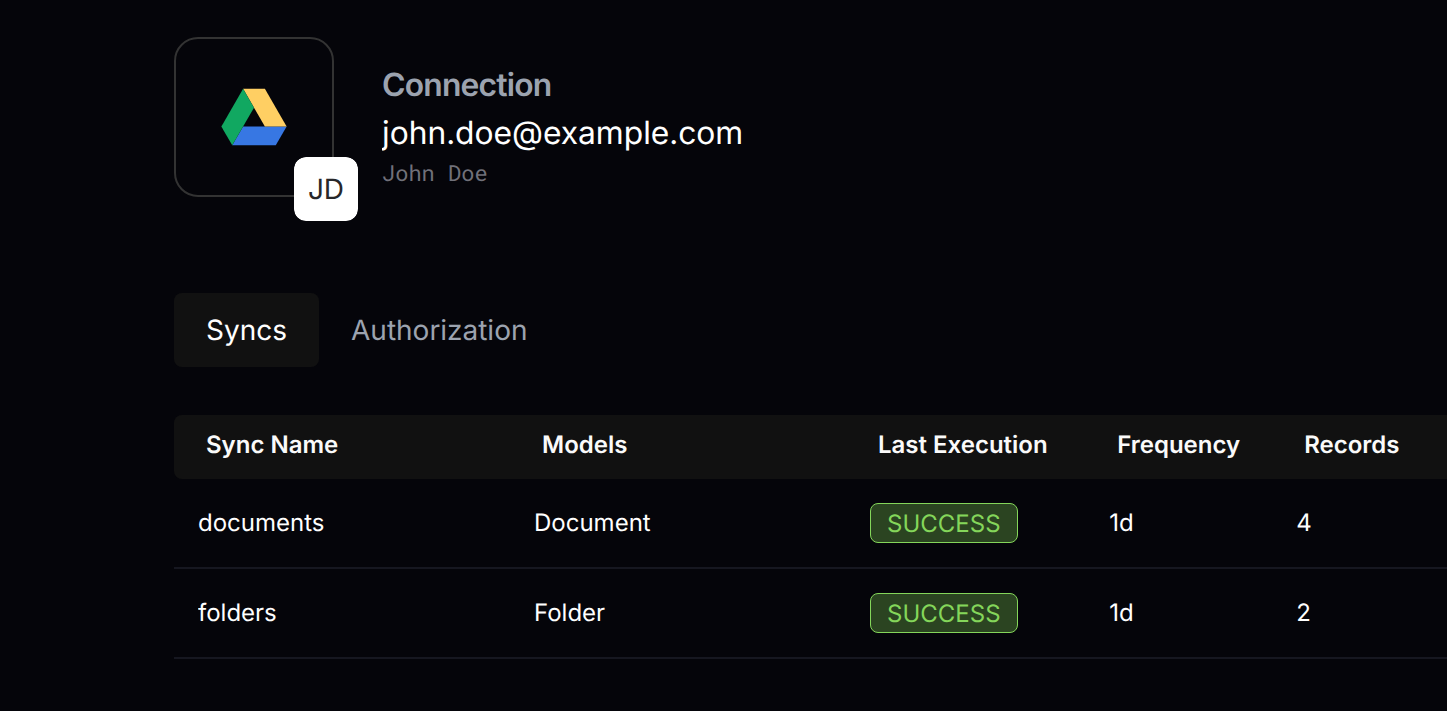
-
File Syncing
- Sync selected files & folders
- Initial sync on selection
- Periodic updates
-
File Download
- Download raw file content
- Handle different file types
- Use Tenklo's proxy for reliable downloads
Key Components
Frontend Implementation
-
Authorization Flow The authorization process is implemented in
front-end/src/api.ts:postConnectSession: Initiates the OAuth connectiongetNangoCredentials: Retrieves credentials after successful authorization
The flow works as follows:
- Frontend initiates connection via
postConnectSession - Backend creates a Tenklo connection session
- User is redirected to provider OAuth consent screen
- After authorization, user is redirected back to the app
- User is shown the provider-specific file picker (Google Drive Picker, OneDrive for Business picker, or OneDrive Personal picker)
- Frontend can fetch credentials using
getNangoCredentials
Backend Implementation
-
Webhook Handler & Data Sync The webhook handling and data sync logic is implemented in
back-end/src/routes/postWebhooks.ts:Key components:
- Main webhook handler that verifies signatures and routes requests
handleNewConnectionWebhook: Processes new file provider connectionshandleSyncWebhook: Handles sync completion and data processing
The sync process:
- Tenklo syncs files from the provider
- Webhook notifies backend of sync completion
- Backend fetches records using
nango.listRecords - File metadata is stored in the database
- Deletions are tracked and handled appropriately
-
File Download with Proxy File download functionality is implemented in
back-end/src/routes/downloadFile.ts:The download process:
- Frontend requests file download with file ID and connection ID
- Backend uses Tenklo proxy to fetch file from provider
- File is streamed to client with proper headers
- Error handling ensures graceful failure
Key features:
- Uses Tenklo proxy for secure file access
- Proper content type and disposition headers
- Streaming response for efficient file transfer
- Comprehensive error handling
Tenklo Dashboard
Explore these sections in your Tenklo account:
-
Integration Settings
- View Integrations
- Configure sync settings
- View integration status
-
Connections
- View Connections
- Monitor sync status
- Check connection health
-
Logs
- View Logs
- Track sync operations
- Debug issues
Common Issues and Solutions
-
Connection Issues
- Check Docker is running
- Verify webhook URL is correct
- Ensure provider credentials are valid
-
Sync Problems
- Check Tenklo logs
- Verify file permissions
- Monitor sync status
File Type Support
The sample app supports all file types through Tenklo's proxy:
- Regular files (PDFs, images, documents, etc.)
- Google Workspace files (Docs, Sheets, Slides)
- Microsoft Office files (Word, Excel, PowerPoint)
- Other cloud storage file types
Questions, problems, feedback? Please reach out in the Slack community.
Next steps
- Auth guide - understand the authorization flow used by the sample app.
- Sync functions - customize the data sync logic.
- Webhooks from Tenklo - process sync and auth notifications.